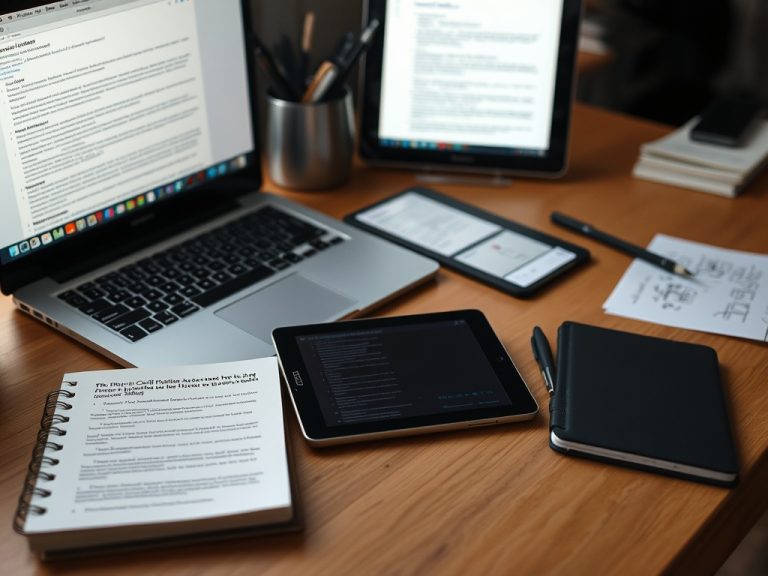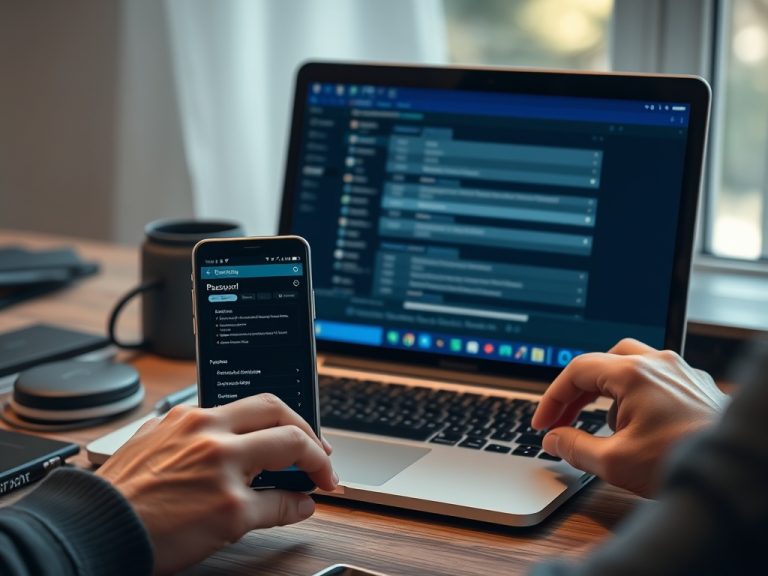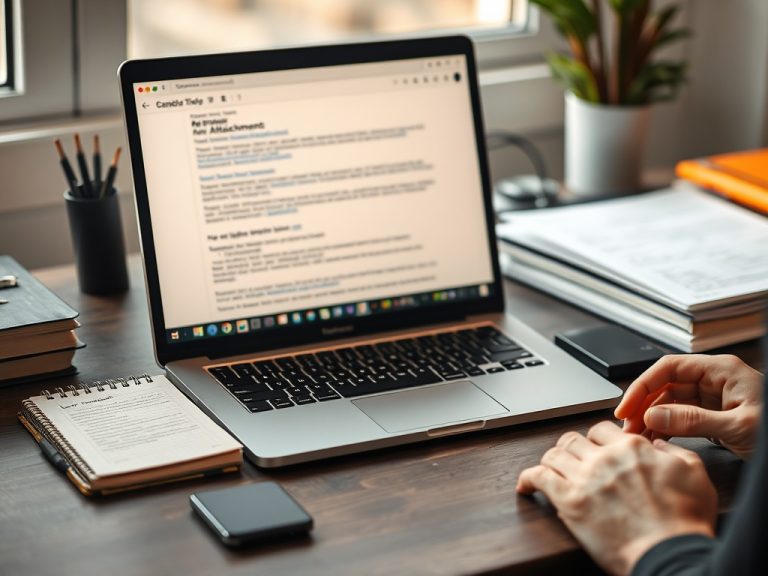
Virtual desktops let one computer feel like several organized workspaces by separating open windows into different desktops. They reduce context switching when each desktop has a purpose, such as writing, communication, research, or meetings.
Beginner takeaway: A virtual desktop is not a new computer and not the same as a remote desktop. It is a workspace view on your current machine that helps group tasks so fewer unrelated windows compete for attention.
What a Virtual Desktop Does
A virtual desktop creates another workspace on the same device. Your apps still run on the same computer, but their windows can be grouped into different desktop views. For example, Desktop 1 can hold email and calendar, Desktop 2 can hold research tabs, and Desktop 3 can hold a document draft.
Windows and macOS both support this idea. Microsoft’s Windows support article on multiple desktops in Windows explains the core workflow for creating and switching desktops, while Apple’s guide to working in multiple spaces on Mac describes the macOS version of the same concept.
The feature helps because attention has limits. A cluttered screen encourages constant checking. A separated workspace lets you decide which set of windows belongs to the current task.
Build Desktops Around Decisions
Do not create desktops randomly. Give each one a job. A beginner-friendly setup might use:
- **Focus:** the document, spreadsheet, editor, or app where the main work happens.
- **Communication:** email, chat, calendar, and meeting notes.
- **Research:** browser tabs, PDFs, documentation, and reference pages.
- **Admin:** invoices, file manager, downloads, and settings.
This structure makes switching intentional. Instead of minimizing ten windows to find one file, you move to the desktop where that kind of work belongs.

Keep the Number Small
More desktops are not always better. Beginners often create too many, then forget where everything is. Start with two or three. If a desktop does not have a clear purpose, remove it or merge it with another.
A good test is whether you can name each desktop in one word. “Writing,” “Comms,” and “Research” are clear. “Stuff,” “Later,” and “Misc” become clutter with a different label.
Virtual desktops also work well with routines from email attachment and inbox management. Keep email on one desktop and active work on another, so every incoming message does not interrupt the writing, editing, or planning task on screen.
Use Keyboard Shortcuts After the Layout Feels Natural
Clicking Task View or Mission Control is fine at first. Once the layout makes sense, learn the shortcut for moving between desktops. Shortcuts reduce friction and make the feature feel like part of the operating system rather than a separate tool.
A practical habit is to switch only when the task changes. Do not jump between desktops every few seconds. That recreates the same context switching the feature is supposed to reduce.
Combine Virtual Desktops With Browser Discipline
Virtual desktops will not fix fifty random tabs. If research is the problem, group tabs by project, use browser profiles when needed, and close tabs after extracting the information. A research desktop should hold a working set, not a permanent archive.
For users who often switch between creative work, publishing, and admin tasks, the next layer is tool selection. A focused desktop layout pairs well with creative apps and workflow resources, especially when design, writing, screen capture, and file export steps are separated.
Common Beginner Mistakes
The first mistake is using desktops as hiding places. If a window is open only because you are afraid to close it, save the file, bookmark the tab, or create a task. The second mistake is placing the same apps everywhere. If chat appears on every desktop, the distraction follows you. The third mistake is ignoring notifications. A hidden desktop can still generate sound, banners, and badges.
Adjust notification settings so the focus desktop stays quiet. Keep meeting apps accessible during scheduled calls, but do not leave every alert visible all day. When work devices are shared, lock the screen before leaving the desk; virtual desktops do not protect private content from someone using the same logged-in account.
When Beginners Should Care
Virtual desktops are useful when you regularly lose windows, mix personal and work tasks, switch between projects, or need to present one clean workspace while keeping notes elsewhere. They are less useful if you use only one or two apps at a time.
Remote workers, students, writers, support teams, developers, and managers can all benefit because their work often alternates between communication and deep task completion. If the device contains work accounts or sensitive data, combine virtual desktop habits with work laptop and phone lockdown steps.
A Focus Setup That Sticks
Start with three desktops for one week: Focus, Communication, and Reference. Put every window where it belongs. At the end of each day, close unused windows and keep only active work. The goal is not a perfect desktop system; it is less searching, fewer interruptions, and a clearer path back to the task you intended to finish.
Naming and Reset Habits
Some operating systems let users rename desktops or assign different wallpapers. Use those features if they help recognition, but do not rely on decoration alone. The real habit is resetting desktops at the end of a work block. Close finished documents, move saved files to their folders, and leave only the windows needed for the next session.
A weekly reset prevents virtual desktops from becoming invisible clutter. It also helps when screen sharing. Before a call, move private windows to a separate desktop or close them entirely. Virtual desktops can create a cleaner presentation space, but they are not a substitute for reviewing what is visible on every connected monitor.