
To lock down work laptops and phones, start with updates, strong sign-in, encryption, screen locks, app control, backups, and a lost-device plan. The goal is not to make the device inconvenient; it is to make routine work safer if the device is stolen, shared, infected, or connected to a risky network.
Security-first summary: A work device should be updated, encrypted, protected by multi-factor authentication, locked quickly when idle, separated from personal accounts where possible, and backed up to an approved location.
Begin With Ownership and Policy
Before changing settings, know who owns the device and which rules apply. A company-owned laptop may already be managed by device management software. A personal phone used for work may need a separate work profile, mobile device management enrollment, or app-level controls. Do not bypass a company policy to make setup easier.
NIST’s guidance on securing data and devices is a useful reference because it groups device protection into practical topics such as authentication, data protection, mobile devices, physical security, and software updates. For small teams and freelancers, those categories are a good checklist.
Step 1: Update the Operating System and Apps
Security patches close known weaknesses. Update the operating system, browser, office apps, password manager, VPN client, communication tools, and cloud storage apps. Turn on automatic updates where appropriate, but still schedule a manual check each month for devices used daily.
Do not ignore firmware or router updates. A secure laptop connected to an outdated router still has exposure. This is especially relevant for remote workers who rely on home networks.
Step 2: Strengthen Sign-In
Use a long device password or passphrase, not a short predictable PIN unless the device’s security model supports it well and company policy allows it. Turn on biometric unlock for convenience, but keep a strong passcode behind it. For accounts, use multi-factor authentication, especially for email, cloud storage, admin tools, and financial systems.
Avoid sharing one login across a team. Shared credentials make it hard to remove access when someone leaves and make incident review nearly impossible. Use individual accounts with role-based access.
Step 3: Encrypt and Back Up Data
Device encryption protects stored files if a laptop or phone is lost. Modern operating systems often offer built-in encryption, but it may need to be enabled, verified, or tied to a recovery key. Keep recovery keys in an approved account or password manager, not in a note stored on the same device.
Backups should be automatic and restorable. Cloud sync is not always a full backup because accidental deletion or ransomware may sync bad changes. For sensitive work, use approved cloud storage, version history, and a documented recovery process. A better file plan connects directly to cloud storage setup choices.
Step 4: Control Apps and Browser Extensions
Install only trusted apps from official stores or approved vendor sites. Remove apps that no longer serve a work purpose. Review browser extensions because they can access pages, cookies, clipboard content, or browsing activity depending on permissions.
For laptops used by multiple people, create separate user accounts. Do not let family members or casual helpers use a work profile. For phones, use a work profile or separate apps when supported so work data can be removed without wiping personal content.
Step 5: Protect Network Use
Use secure Wi-Fi, avoid unknown USB devices, and connect through the required VPN for work systems. The FTC’s home Wi-Fi guidance is a useful reminder that network security starts with router passwords, encryption settings, and updates, not only laptop settings. Remote workers who struggle with tunnel reliability should also review VPN mistakes that cause lag and drop-offs.
On public Wi-Fi, assume the network is untrusted. Avoid installing certificates, helper apps, or browser extensions just to connect. If a portal behaves strangely, use a mobile hotspot or wait for a safer network.
Step 6: Set Locks, Find-My Features, and Wipe Options
Short auto-lock timers reduce risk when a device is left on a table, in a car, or in a meeting room. Turn on find-my-device features where policy allows. For company devices, confirm who can remotely lock or wipe the device and when that action is used.
A lost-device plan should include:
- How to report the loss.
- Which accounts to sign out of first.
- How to rotate passwords and revoke sessions.
- Whether the device should be locked, wiped, or tracked.
- How to restore work on a replacement device.
Step 7: Separate Work From Personal Convenience
Work devices become risky when personal browsing, gaming, unapproved downloads, and family use mix with client files or company accounts. Keep personal cloud accounts, messaging apps, and browser profiles separate. Use a dedicated browser profile for work so bookmarks, extensions, passwords, and history are easier to control.
This separation also improves productivity. A locked-down device with clean app boundaries supports focused systems such as virtual desktops for fewer context switches.
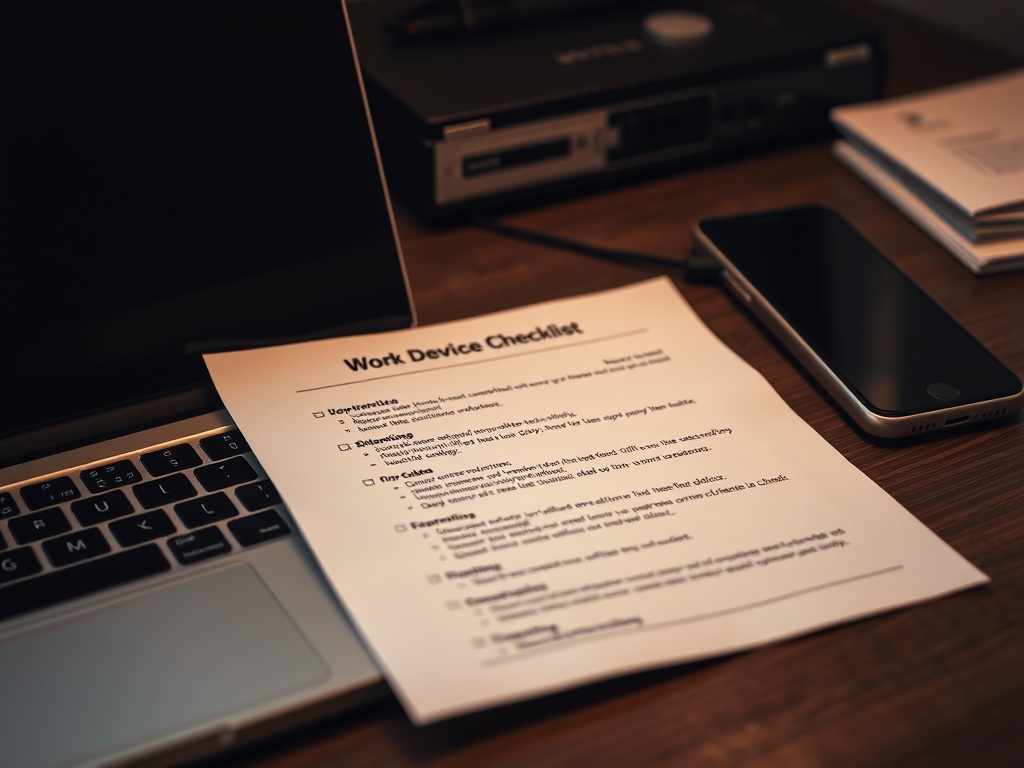
Quick Lockdown Checklist
Use this as a monthly review:
1. Operating system and apps are updated.
2. Device encryption is enabled and recovery keys are stored safely.
3. Screen lock starts quickly.
4. Passwords are unique and stored in a password manager.
5. Multi-factor authentication is enabled on key accounts.
6. Unused apps and extensions are removed.
7. Backups are tested, not only configured.
8. Lost-device reporting steps are known.
A Secure Device Should Still Be Usable
The best lockdown setup protects work without stopping work. Start with the basics, verify them monthly, and escalate to IT or a security professional when devices hold regulated data, shared credentials, repeated malware alerts, or unclear ownership boundaries.
Administrator Boundary Checks
Small businesses and freelancers should decide who can approve new devices, reset passwords, remove access, and restore backups before an incident happens. A device lockdown plan is weaker if everyone assumes someone else owns those decisions. Write down the account owner, recovery email, backup location, and emergency contact path.
For managed workplaces, ask IT before changing encryption, VPN, or device-management settings. Well-meant changes can break compliance checks or remove required protections.